 Nadine Dove
3.5 KiB
Obtain the Image Pull Image
The image pull key secret is used in the deployment to enable downloading Zerto’s component images. Follow these steps to obtain the image pull key secret.
- Log in to myZerto.
- Navigate to Support & Downloads > Software Downloads > Zerto In-Cloud.
- Click Download Online Installer to download the installer.
- Click Download Primary Account IAM Policy to download the policy files.
- Click Download Collection to download collection for Postman.
- Click Username and Password and generate keys.
- Copy the Username and Password keys to a local file so you have access to them when you need this information later when installing Zerto software.
The account team will send an email notification that your AWS Account ID was added to the privately published AMI. After you receive the email notification continue with the following configuration, deployment and installation steps.
AWS Configuration
- In the AWS console, go to AMIs and filter by Private Images. You should see a Private AMI for a zlinux/zAppliance machine.
- Add a custom IAM Role in zic-primary-account-iam-policy.json. For more information on how to create an IAM role, see Creating IAM roles.
- Ensure that ports 22 and 443 are open Inbound, as the Security Group for the ZIC management network will need them. See ZIC Ports and Related Services
- Create a VPC with a subnet and use the Security Group you created for the ZIC Appliance.
Deploying the ZIC Appliance Deployment in AWS
- Select the Private zlinux/zAppliance AMI and launch it. Choose m5a.large as the EC2 Instance size.
- Configure the instance details for ZIC.
- Assign the Custom IAM Role that was created for ZIC.
- Select/Configure the VPC and Subnet.
- Use the defaults for Storage and add tags (optional).
- Select the security group created earlier, or create a new security group.
- If creating a new security group, make sure ports 22 and 443 rules are added.
- Click Review and Launch to deploy the ZIC Appliance.
Note: To access a Linux instance in AWS you need to use PuTTY Private Key (ppk). If you are using Putty or WinSCP on Windows you must convert the PEM file to PPK format. Click here to learn how to convert .pem to .ppk using PuTTYgen.
Installing the ZIC Appliance
-
When the ZIC instance is running, connect to it with username "admin". No password is required.
-
Copy the zipped file to /home/admin/ on ZIC, with any tool you normally use to copy files to Linux servers (WinSCP, SCP, Termius).
-
Install Unzip using the command:
sudo apt install unzip -y -
Install Unzip using the command:
unzip zic-1.0.448.zip.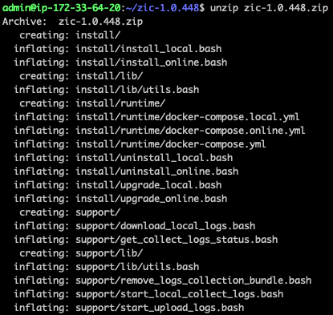
-
Go to the extracted directory and run the following command to allow bash script execution:
sudo find . -name "*.bash" -exec chmod +x {} \; -
Run the online installer using the command:
sudo install/install_online.bash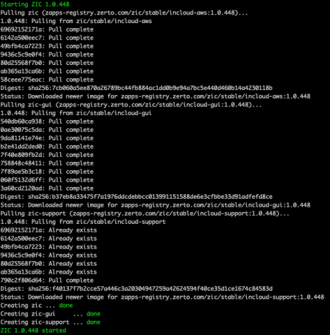
When the installation completes, it will display “Starting ZIC 1.0.x” and continues displaying the status until it displays “ZIC 1.0.x started”. You can now connect to ZIC.